
How To Edit Hero Image and Text
To change the primary or “Hero” image and text on the homepage, first select Web Pages from the lefthand menu of Central Station and then select Home from the list in the center screen.

Home pages are pre-formatted with a Carousel block beneath the header. To change the image, or add additional images to the Carousel, click on the block and find the Properties menu on the left.
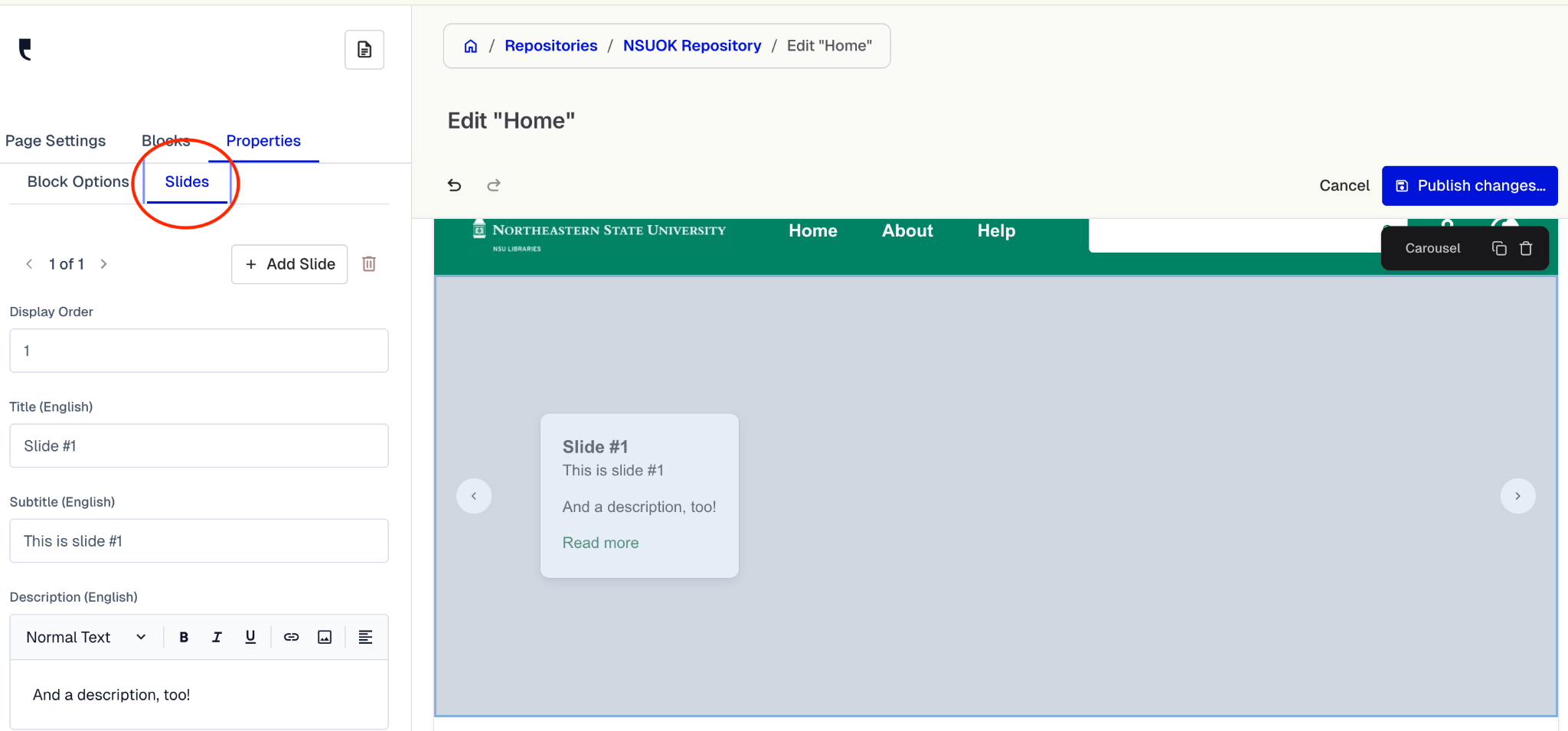
Click Slides beneath the Properties menu to upload new images and adjust text.
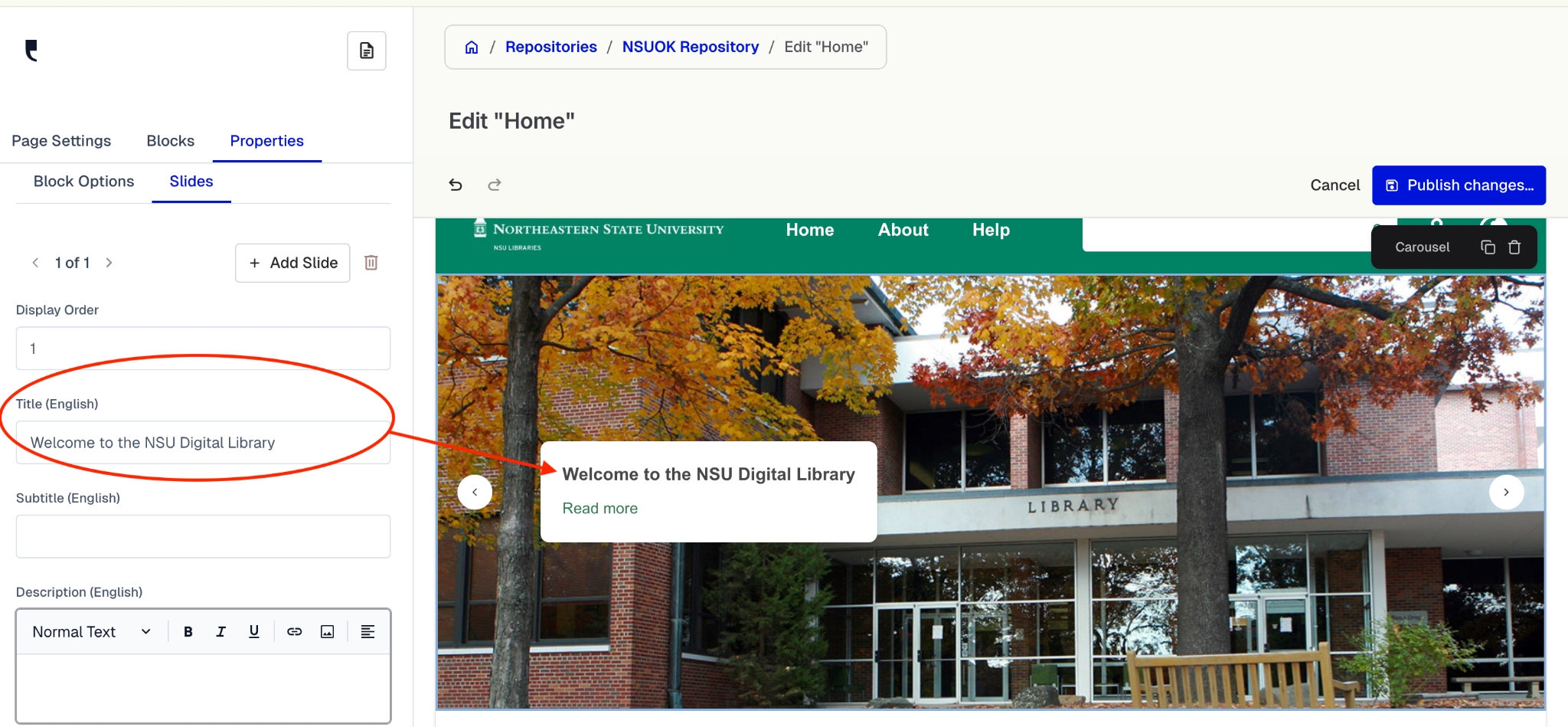
Add Slides and change Title and Subtitle at the top of the lefthand Slides menu.
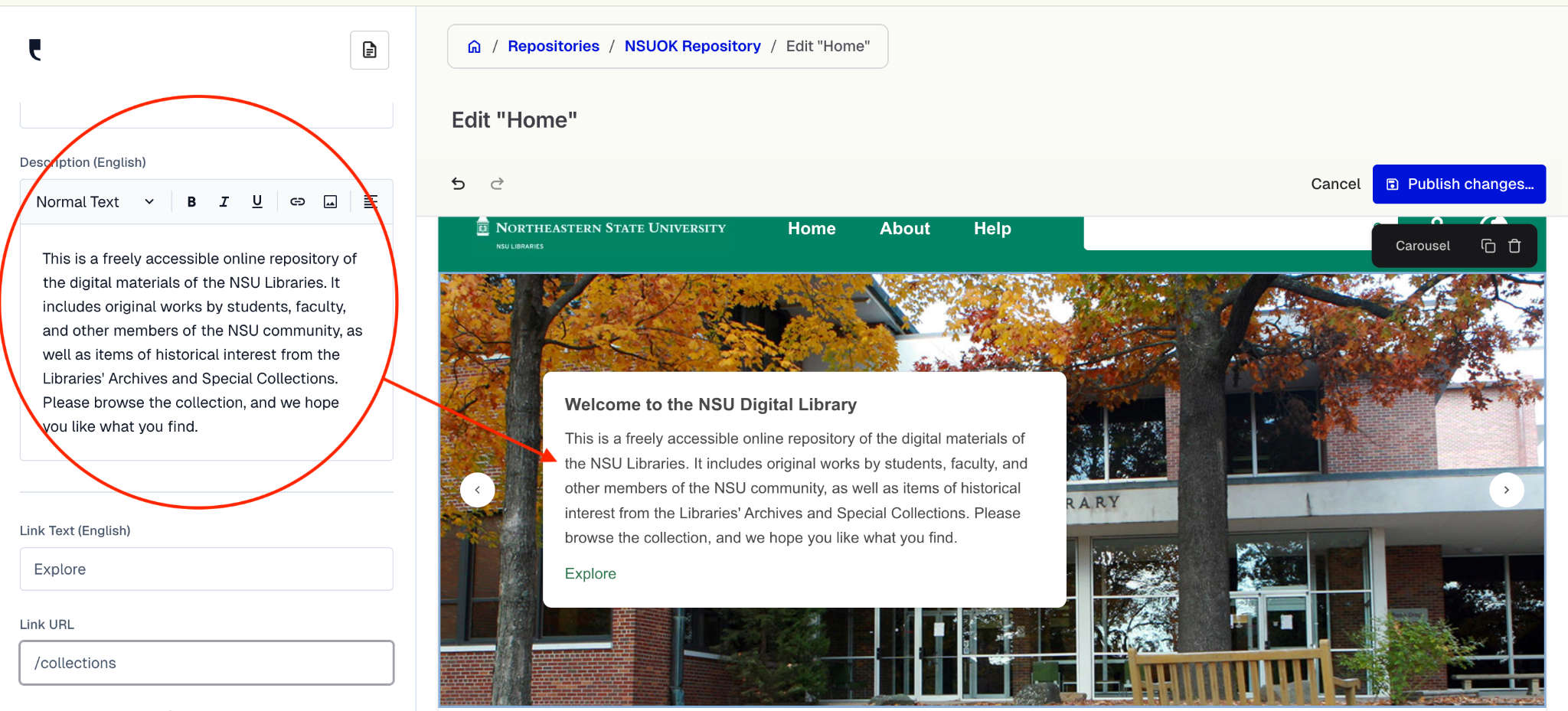
Add and edit the Description in the text editor:
Scroll down to add a Background Image.
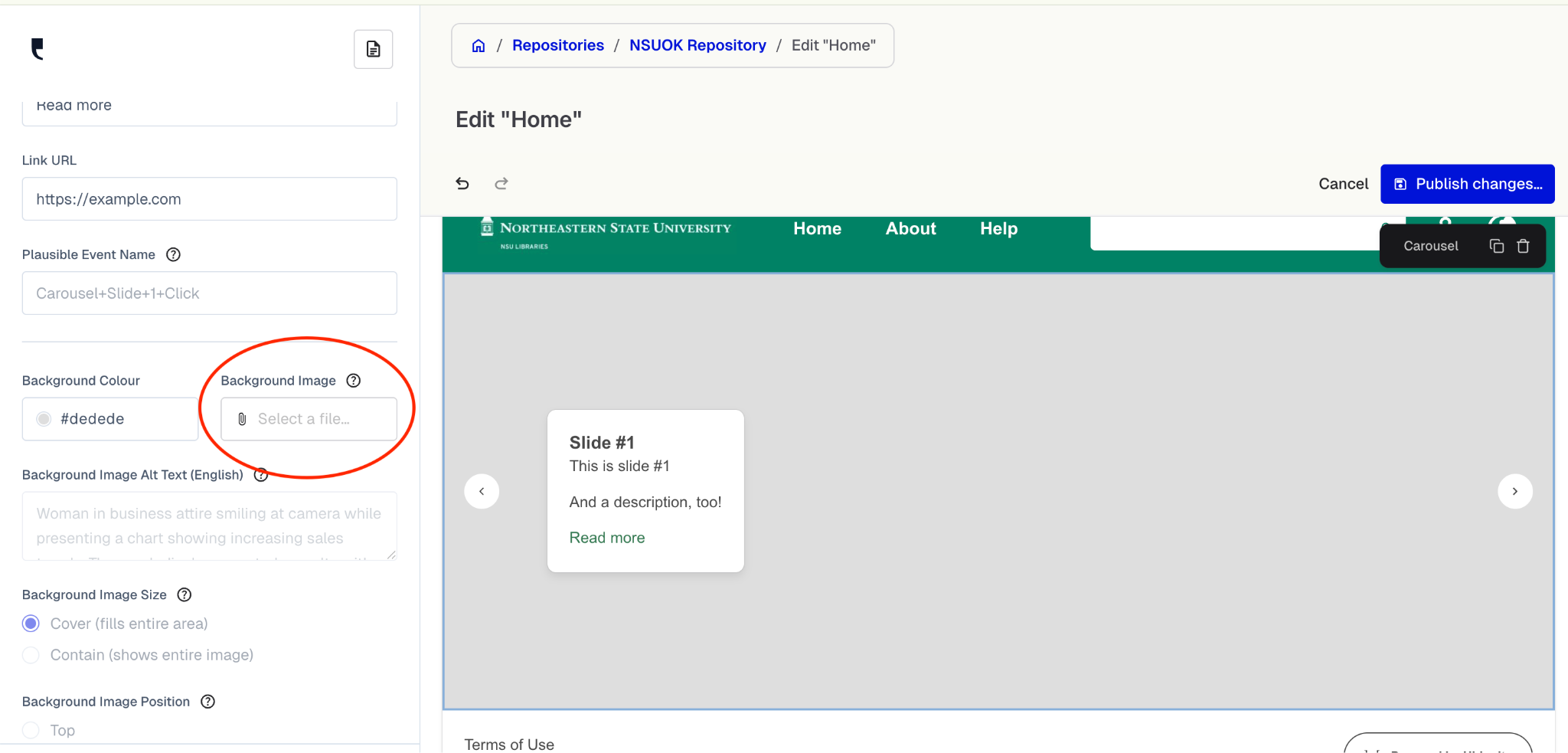
Click the Background Image field to upload an image:
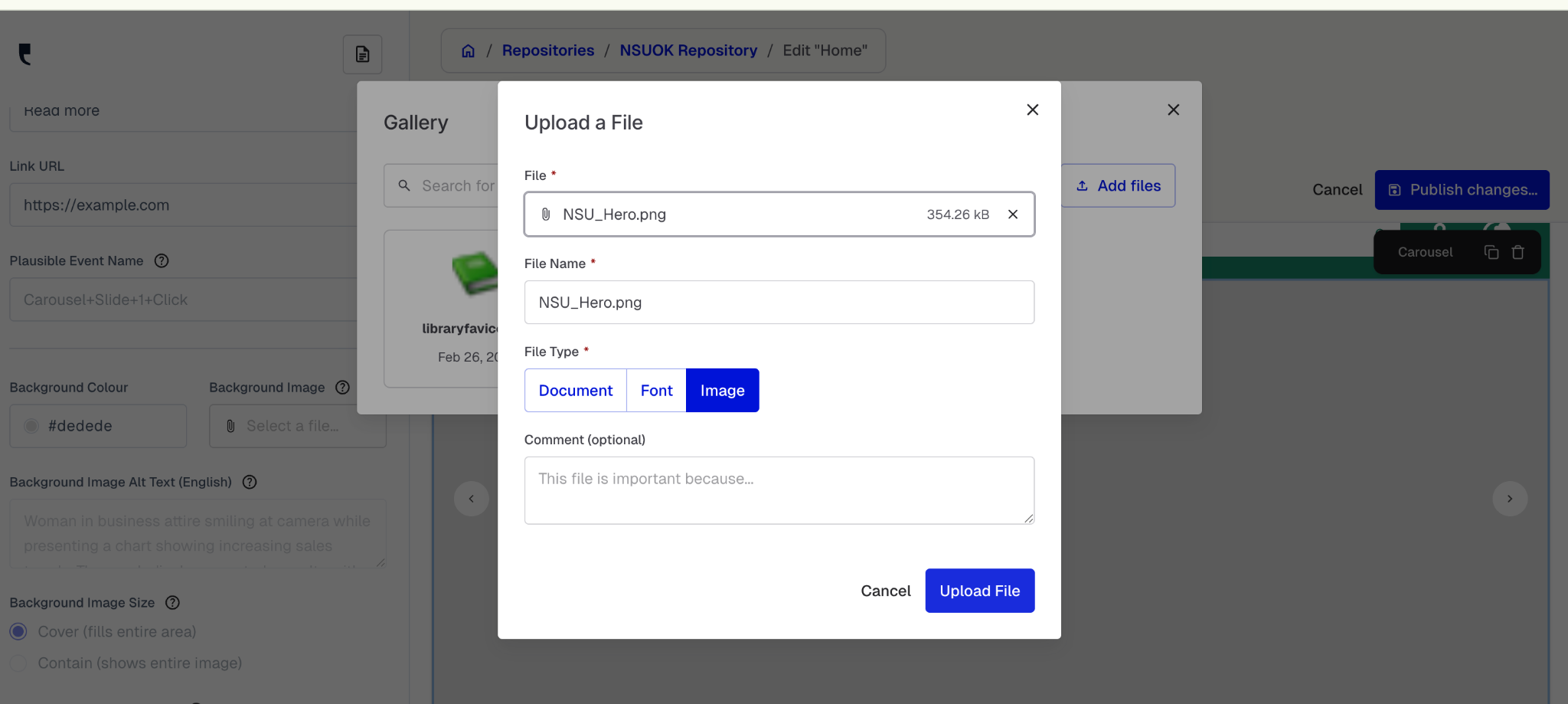
Then select that image from the gallery once it has been uploaded:
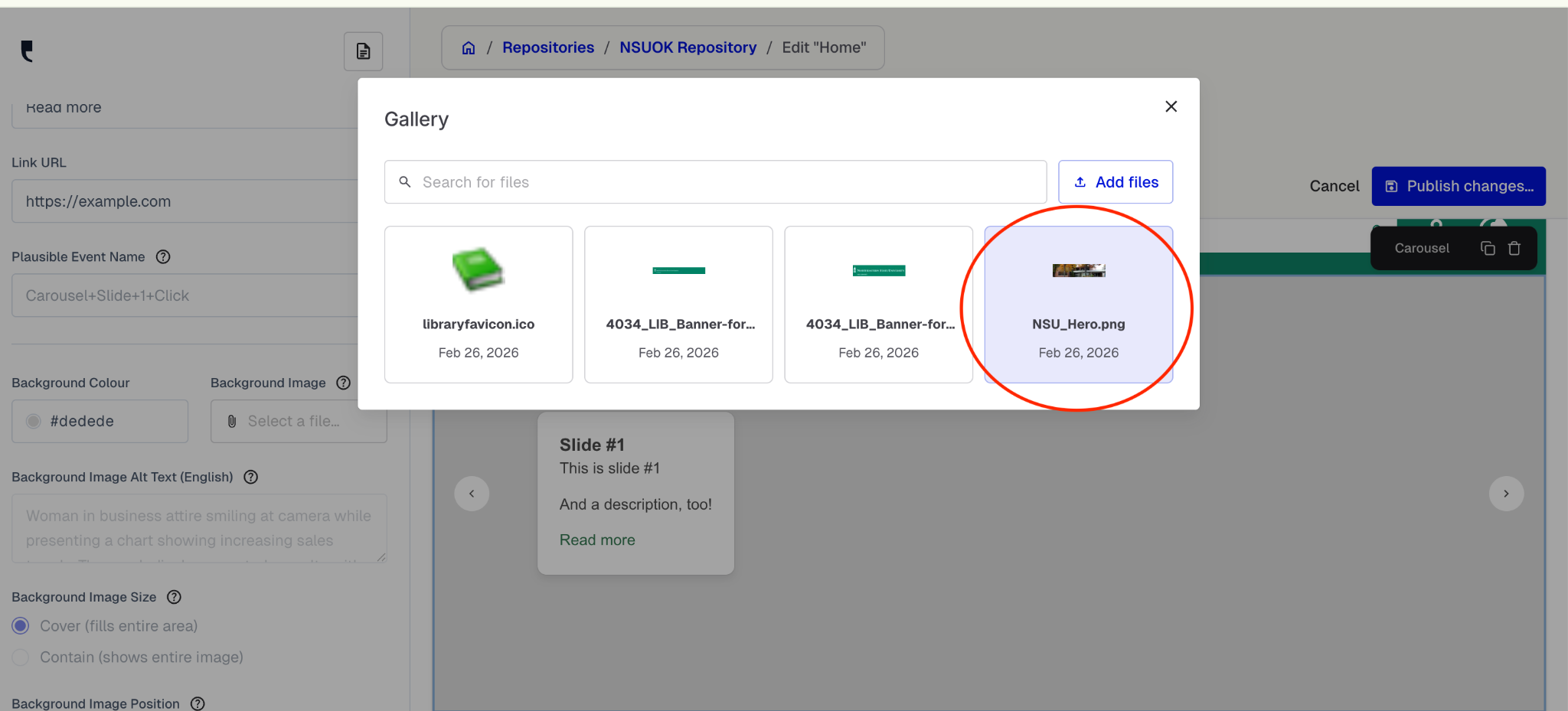
Be sure to save your work by clicking the blue Publish Changes button in the top right corner.
