How To Edit About Page
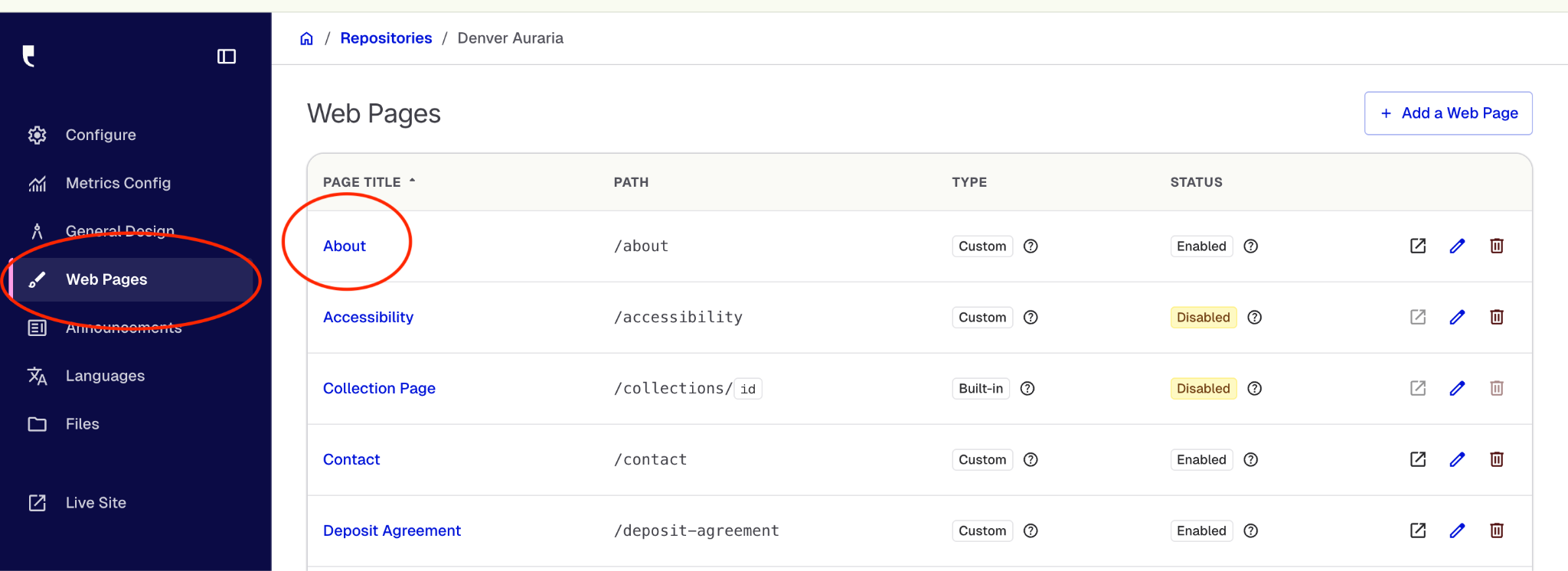
To edit the About page, first click on “Web Pages” in Central Station’s lefthand menu. Then select “About” from the list of web pages. (Because pages are displayed alphabetically, “About” should be near the top of the list.)
When you select “About” the hyperlink will take you to the “Edit ‘About’” dashboard, displaying both Page Settings and design Blocks.
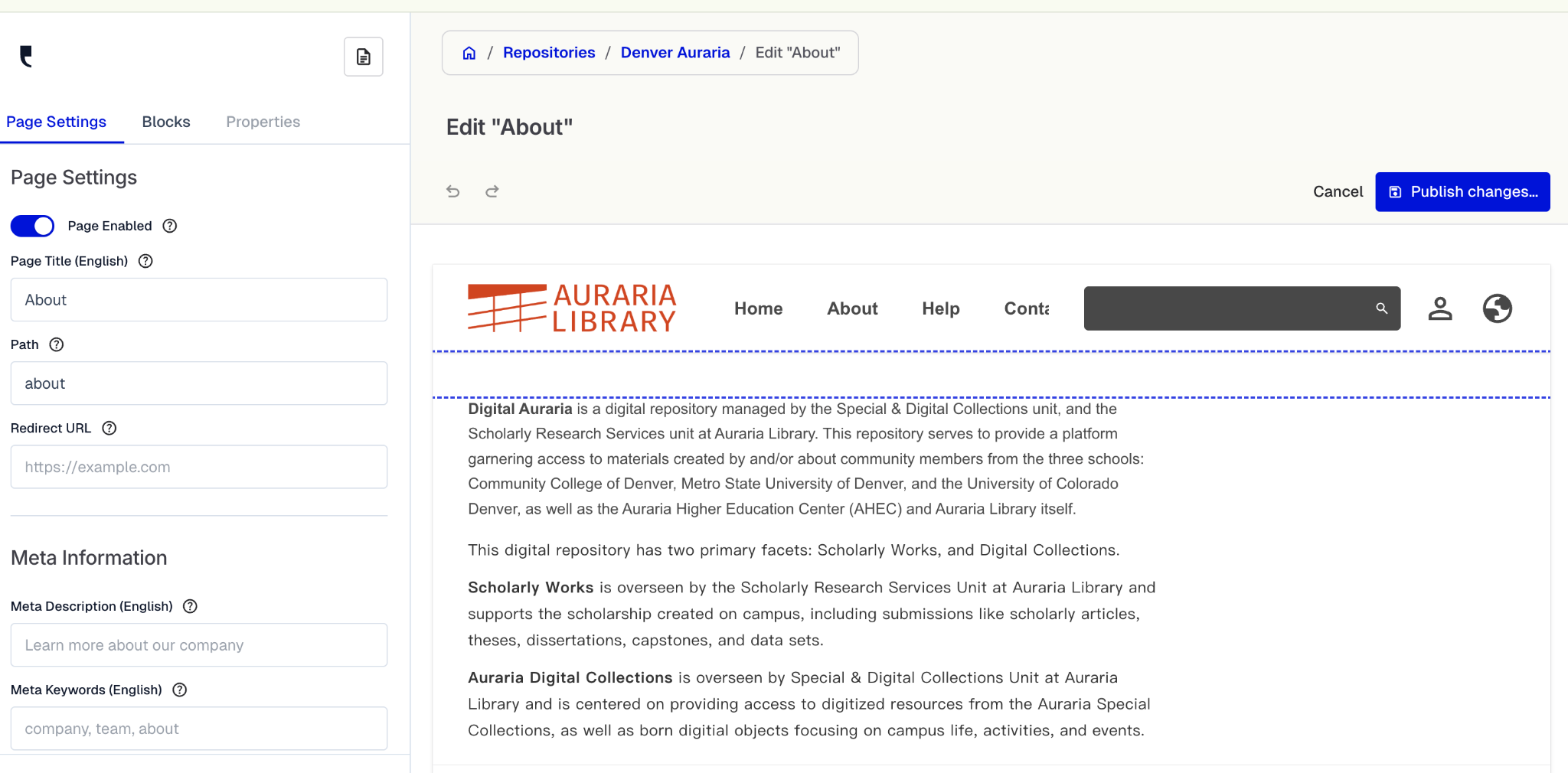
Page Settings allows you to enable or disable the page, using the blue toggle at the top, directly underneath the “Page Settings” label.
You can also edit the Page Title, Path, and Redirect URL, and Meta Information. However, any changes to these fields must be made with extreme caution, as further edits to additional fields in other parts of Central Station would be required to maintain page functionality.
Each web page is preformatted with three standard design Blocks, a Spacer, Wrapper, and Text box. These elements can be customized, removed, or replaced in the Blocks menu:

Find the Spacer and Wrapper Blocks in Layout at the top of the lefthand menu.

Scroll down to near the bottom of the Content section of the lefthand menu to find Text. The Text Block is embedded inside the Wrapper Block.

To edit Text, click the Text box inside the Wrapper, and the Text Edit Properties screen will appear in the lefthand menu. Here you can adjust the margins above and below text and edit, remove, and insert new text.

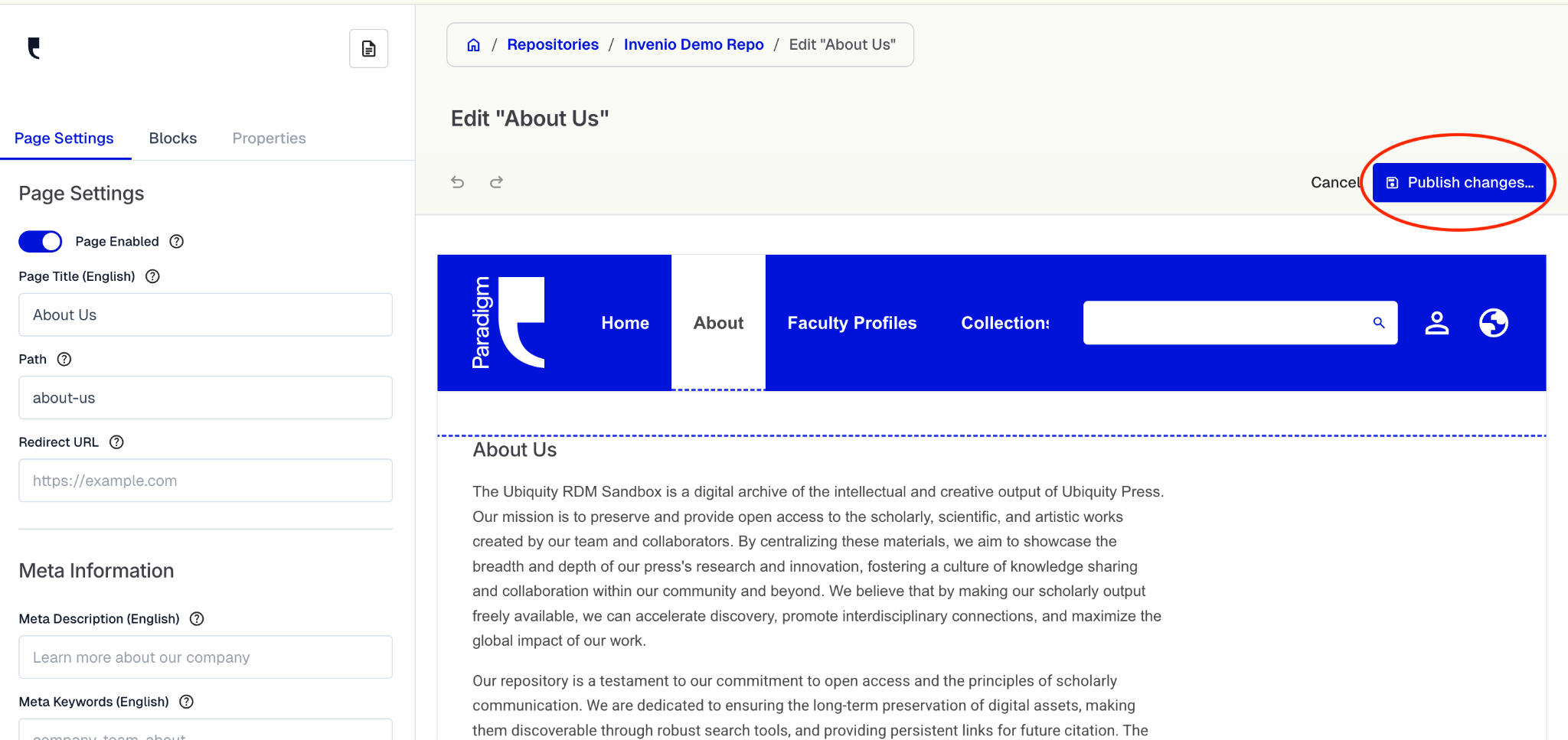
Remember to click the blue “Publish Changes” button in the top right corner after editing.