My Uploads
Access your uploads and those shared with you in the Dashboard. When opening the Dashboard, it defaults to“My Uploads” but you can easily toggle to “Shared with me”.

In the Uploads section you can also view all versions of each uploaded item, as well as sort by access status, publication status, resource type and file type.
Uploading a new record
From the dashboard, there are two options for uploading a new record. Click either the green “New Upload” button in the upper right:

Or click the plus sign in the upper right of the menu bar and select “New Upload” from the dropdown menu:

Either link will bring you to the “New Upload” page where you can select a collection for the new record, upload files, request a DOI, set permissions, and provide necessary publication information.

Note: in order to complete a submission (to either publish it to the repository or submit it to a mediated collection for review), all required fields must be completed:
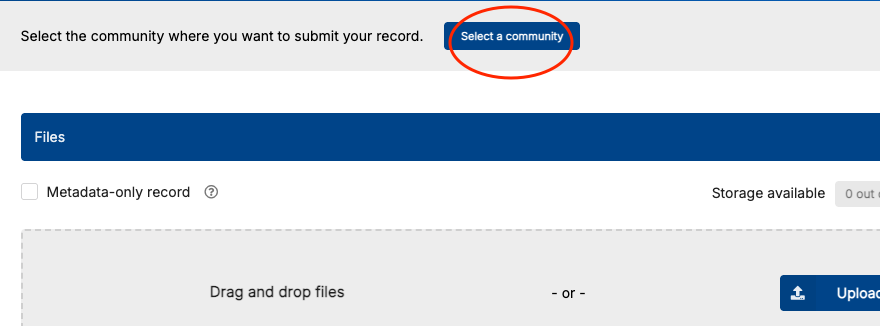
- Choose a collection to submit your record to (from the "Select a collection" button at the top of the form [sometimes this is labeled "Select a community"]):
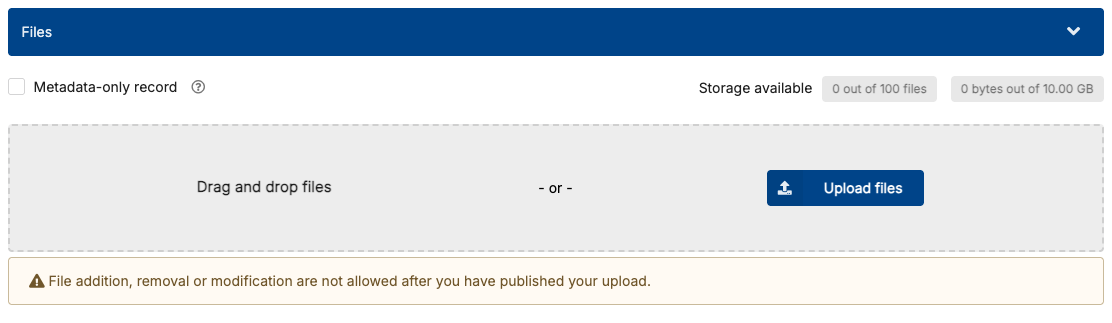
- Upload a file (or select the checkbox for "Metadata-only record"):
- If your repository creates DOIs, either request a new draft DOI for your record (or enter an existing DOI in cases where the record already has a DOI):

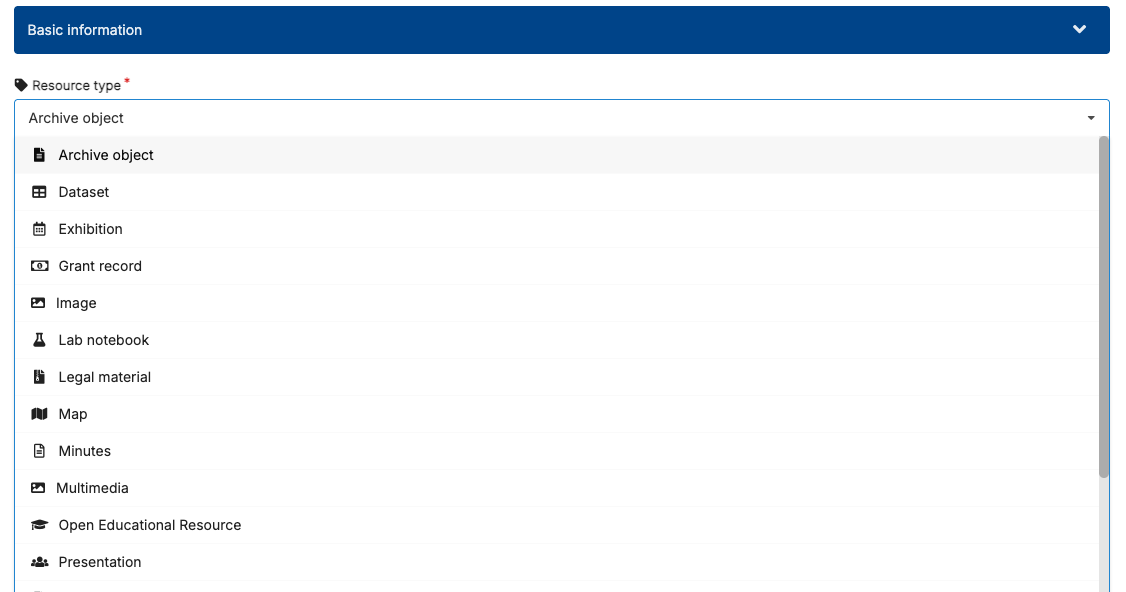
- Select a "Resource type" from the dropdown list of options:
- Provide a title for your new record:

- Make sure a publication date is provided (the system automatically fills this field with the current date, but you may wish to change this):

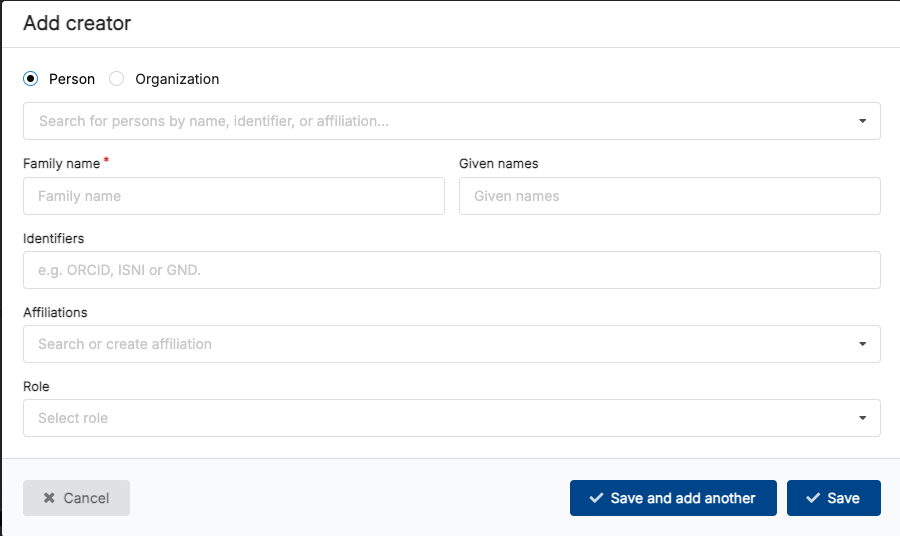
- Provide at least one "Creator" for the record (by clicking the "Add Creator button" and then filling out the fields that pop up in a modal window: